> For the complete documentation index, see [llms.txt](https://docs.novaworks.net/naturya/llms.txt). Markdown versions of documentation pages are available by appending `.md` to page URLs; this page is available as [Markdown](https://docs.novaworks.net/naturya/theme-options/mega-menu.md).
# Mega Menu
**Naturya** theme comes with a built-in Mega menu system. It means you don't need to purchase or install extra plugin for this feature. To setup mega menu, please go **Appearance > Menus** and select menu you want to edit. Please note you cannot setup mega menu in the Customizer at this moment.
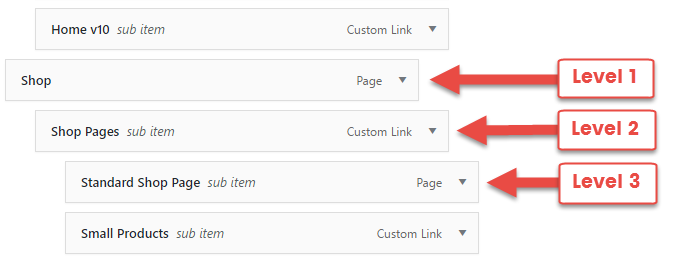
A mega menu can ben enabled on every first level menu item. This image can show you what is menu item level:
## Enable Mega Menu
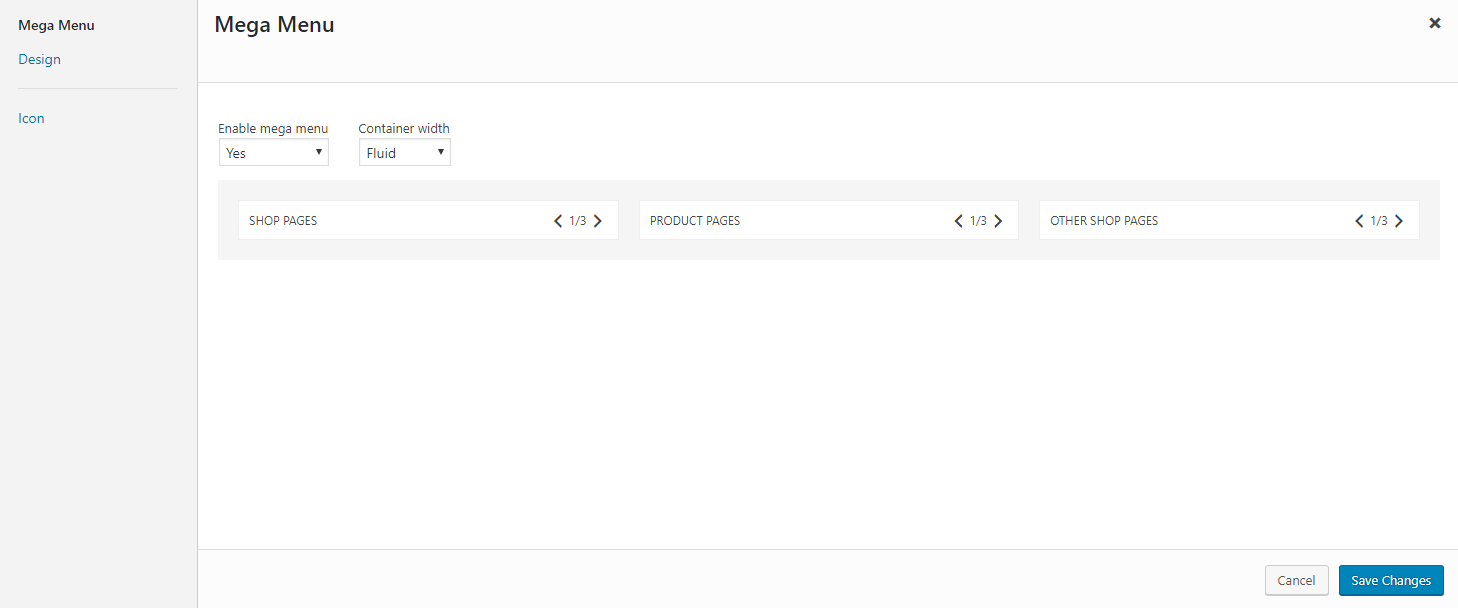
Select a top level (Level 1) menu item that you want to setup mega menu for it. You will see a new **Settings** link added to every menu item. Click to that *Settings* link, a new popup will show up. Please note with different menu item levels, different popups will appear. In this popup, you will see an option to enable the mega menu.
## Mega Menu Columns
In the popup, there are options helping you setup this mega menu item.
* Enable mega menu: select enable or disable mega menu for this menu item. By default, it is disabled.
* Container width: select the mega menu container width.
Bellow, you will see mega menu columns. They are menu items level 2 which are direct children of current menu item. You can change the width of each column right there by clicking to the arrow icons.
## Mega Menu Background
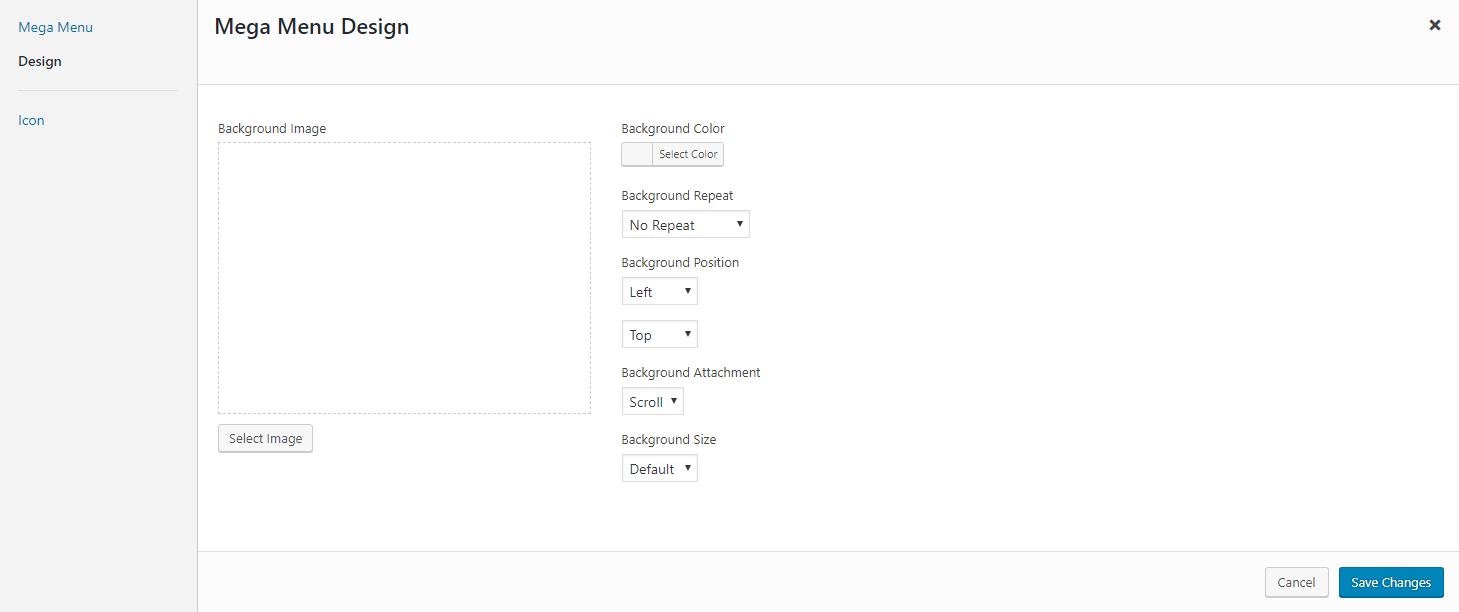
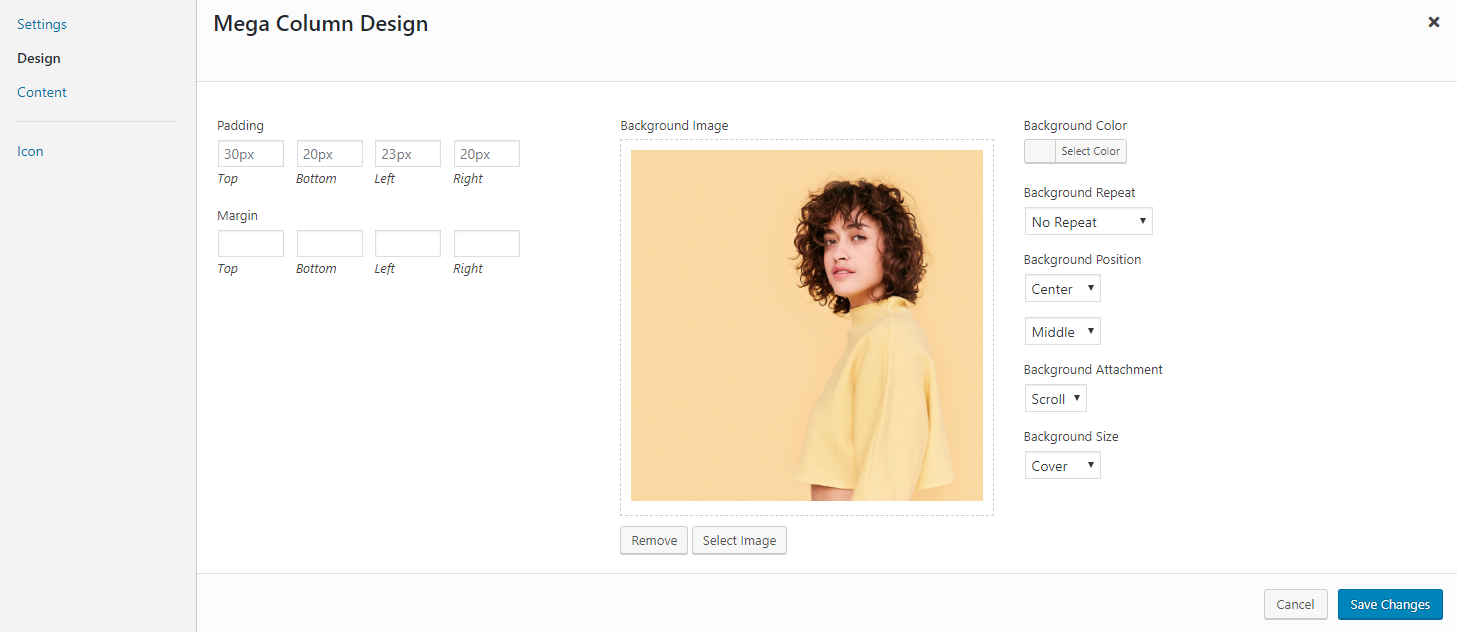
Just click to **Design** menu in the left side of popup, new options will appear and allow you to upload background image as well as select background properties.
## Hide Column Label
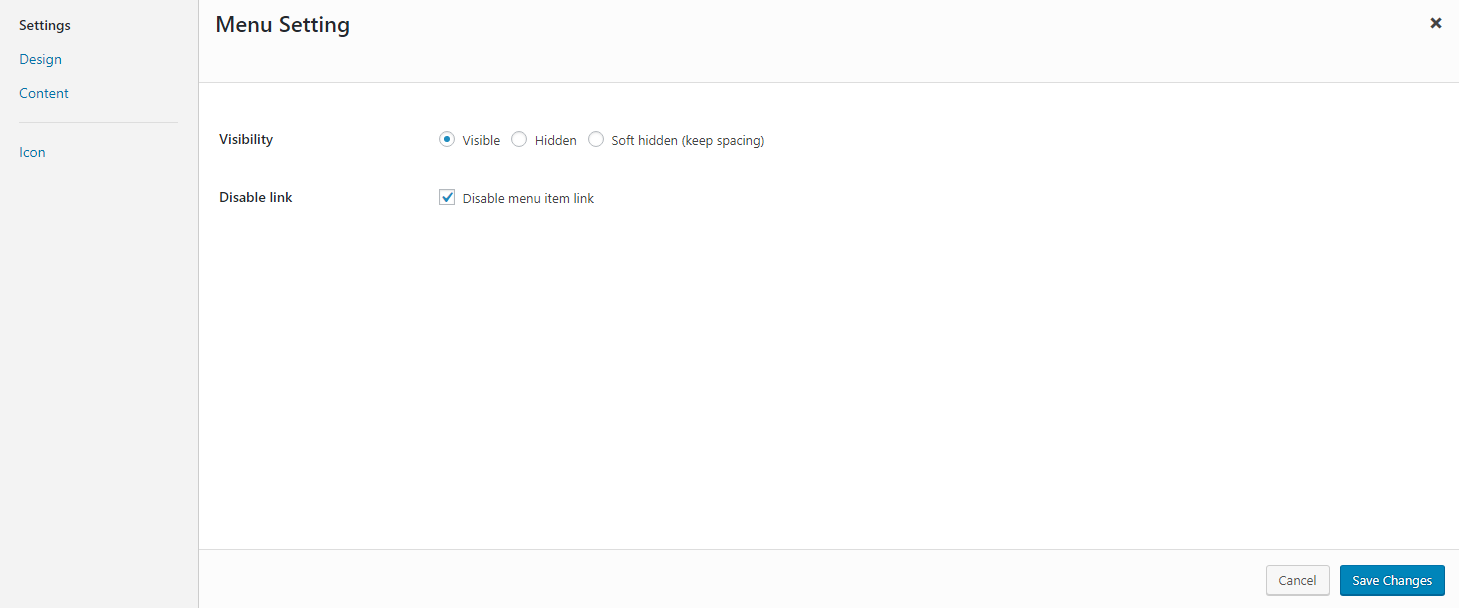
Open the **Settings** popup of menu items level 2, you will see options to set the visiblity of column label.
* **Visibility**: this option allows you to set the visibility of mega menu column label. It is visibile by default.
* **Disable link**: remove link from the mega menu column label.
## Column Background
Open the **Settings** popup of menu items level 2, you can see the tab **Design** on the left side. In this tab, you can upload the background image for a mega menu colum, or simply pick a background color.
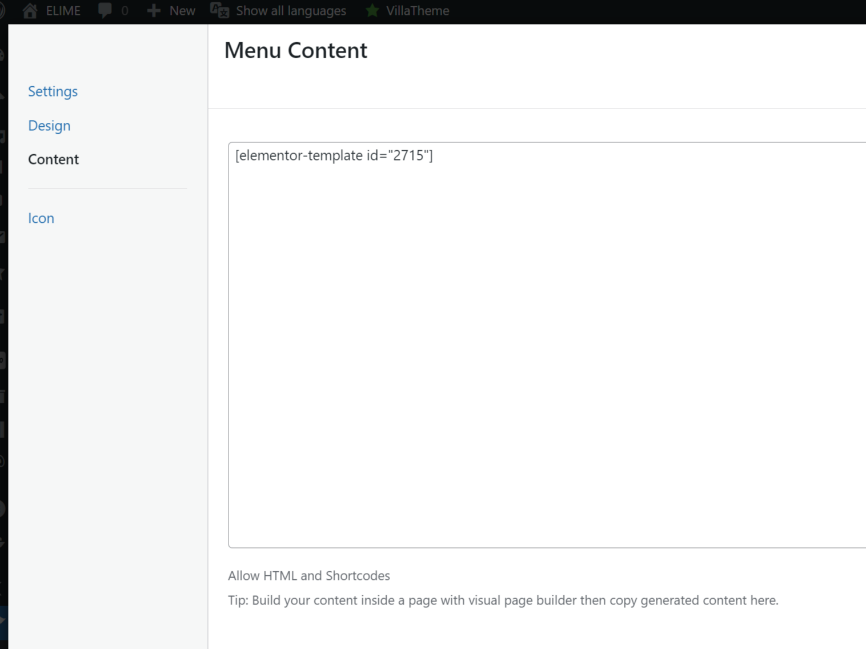
## Custom Content
From menu items level 2 and bellow, you can set a custom HTML content for them. For example, you can hide the column lable then display a HTML/Shortcode of a banner image on the menu.