> For the complete documentation index, see [llms.txt](https://docs.novaworks.net/naturya-shopify-theme/llms.txt). Markdown versions of documentation pages are available by appending `.md` to page URLs; this page is available as [Markdown](https://docs.novaworks.net/naturya-shopify-theme/getting-started/install-naturya-theme.md).
# Install Naturya theme
### 1. Unzip the Theme package
After you bought our theme, please **extract** the download package which you just **downloaded** from Theme Forest: [**https://themeforest.net/downloads**](https://themeforest.net/downloads)
Then you will see the upload file, please upload the **Naturya-x.x.x.zip.**
### 2. Upload a theme file from your computer
If you have a theme in a ZIP file on your computer, you can upload it to the Themes page in the admin.
Before you upload, make sure that your theme files are compressed into a single ZIP file.
{% hint style="success" %}
**Steps:**
1. From your Shopify admin, go to **Online Store** > **Themes**.
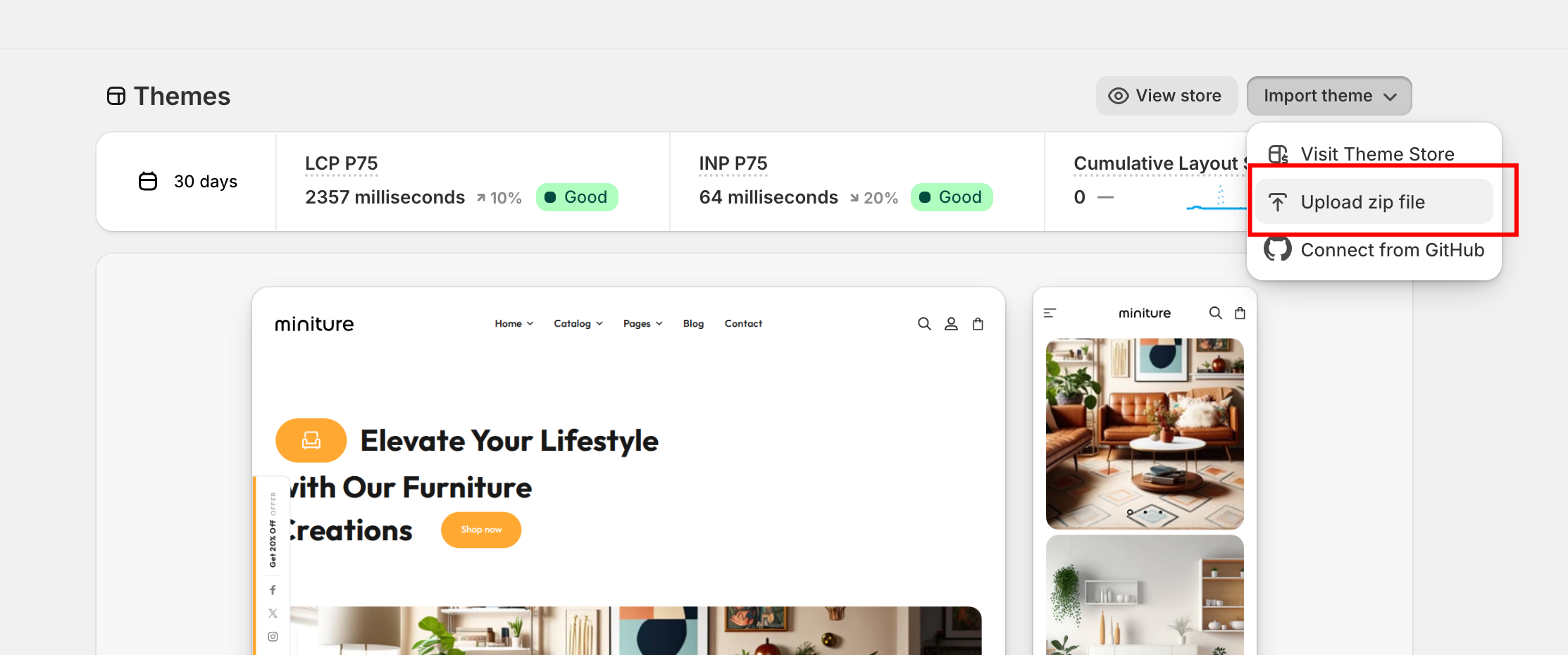
2. In the **Theme library** section, click **Import theme** > **Upload zip file**
3. In the **Upload theme** modal, click **Add file** to select the ZIP file that you want to upload.
4. Select **Upload file**. Your chosen theme will be added to the Themes page of your admin.
{% endhint %}
### Install Different Home Version
Once you finished installing theme Default demo, Do follow steps as explained below.
All you need to do is copy all data from json files from any one preset folder (demo you want to install) and paste it on same theme file on your store as explain below.
{% hint style="success" %}
**Steps :**
1. Navigate to the **“Demo Preset”** folder included in the theme package.
2. In the Preset folder, you can see a folder for all available home. Please open any home folder that you would like install.
3. You can see different **.json** files; Open these file one by one -> copy data from file and paste this data on same theme file on your store (theme that you recently installed)
4. From your Shopify store admin, go to Themes -> Find theme -> Actions -> Edit Code
5. Search and open **index.json** file -> Select all file content and delete it. Next, paste preset folder file data into this file and click save( index.json file data from preset folder. see step 3)
6. Search and open **settings\_data.json** file -> Select all file content and delete it. Next, paste preset folder file data and click save ( settings\_data.json file data from preset folder. see step 3)
7. Follow the same steps for each JSON file located in the Preset folder
{% endhint %}
By Default your uploaded theme is unpublished. Another theme is active on your store. You can publish new theme when you are done with theme configuration and setup. Click on **Publish** button to publish new theme.
\